How to Create an Open Graph Image and Put It on Your Website
Create a social cover from a URL or example, customize its layout, export a PNG, host it and check the live page's Open Graph metadata.
A social cover needs two things to work: a useful image and a page that tells crawlers where to find it. Downloading a design completes the first part. Hosting the file and installing its metadata completes the second.
This guide walks through both using VCL's Open Graph image studio. You can use the free example immediately, or import text from a public page. No account is required.
Start with the message people need to understand
Imagine a fictional product called Fieldnote: a shared brief and decision log for small design teams. Its cover needs a name and a recognizable promise, not every feature on the homepage.
A useful starting brief is:
| Field | Example |
|---|---|
| Brand | Fieldnote |
| Headline | Keep the brief and the decisions together |
| Description | A shared workspace for small design teams |
| Display domain | example.com |
| Optional image | A clear product detail or original illustration |
Replace example.com with your own domain before exporting. If the image feels crowded when reduced to a small link preview, shorten the description or remove a decorative element before shrinking all the text.
Import a URL, or keep everything local
Enter a public page URL and choose Import page text. The studio reads the publicly served HTML for its title, description, brand information and declared image references. It does not run page scripts or capture a website screenshot.
Review the imported copy. A page title written for a browser tab can be too long for a cover; a site-wide description may not describe this particular launch.
Image references do not automatically become artwork. Open Images and logo and explicitly import the hero or logo you want to use, or upload a local PNG, JPEG or WebP. Importing the page's existing OG image can be useful, but it can also create an awkward image-within-an-image effect. Leave it out when a cleaner composition works better.
If the site blocks fetching or requires a login, type the content directly. Local editing and uploads still work without a page import.
Choose a composition and check its limits
The studio offers Editorial, Product, Split, Bold, Minimal and Photo compositions. Try them with your actual words. Product and Split can help balance text with artwork; a simpler composition may work better when you have no useful image.
Edit the headline, description, domain and brand. More design options include the kicker, call to action and colors. The hero can either crop to fill its frame or fit entirely inside it; logos retain their proportions.
Text is fitted within each layout. Very long copy may fit one composition and exceed another. If a template asks for shorter text, edit the field it identifies or choose a composition that can accommodate it.
The studio's Facebook, X, LinkedIn, WhatsApp and Discord previews help you inspect the design in different card shapes. They are approximations, so keep essential content away from the edges and check the real platform after publishing.
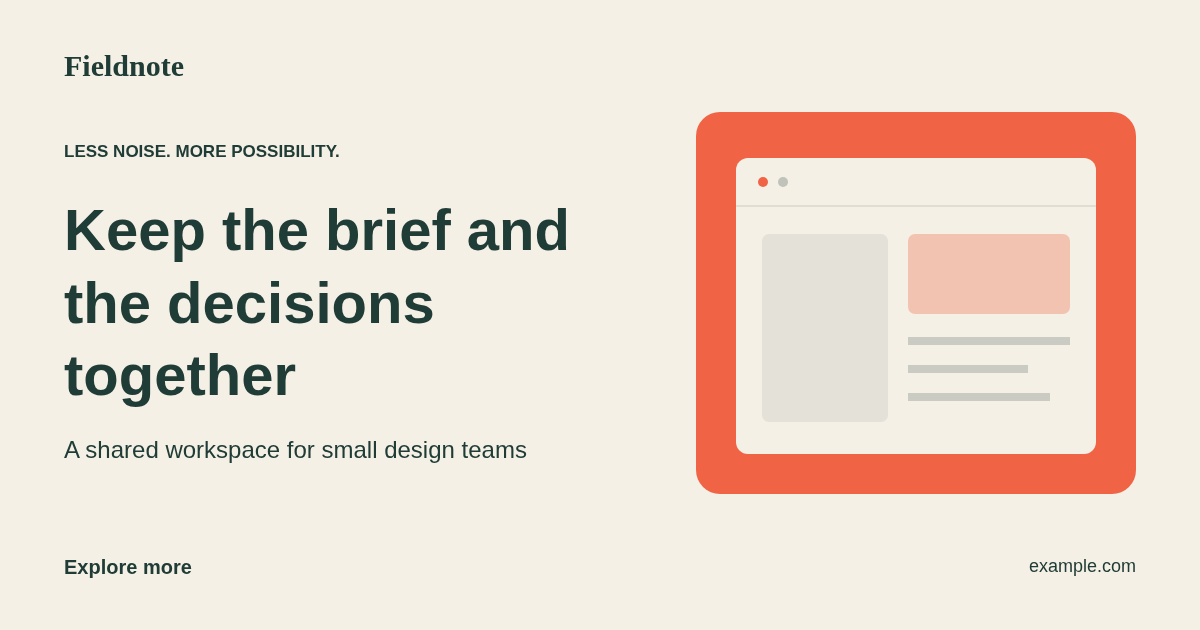
This example was exported from the studio using the brief above and the Product composition. The example domain is a placeholder.
Open Graph image size: export 1200 × 630, then host it
Download the 1200 × 630 PNG for your website. That is approximately a 1.91:1 landscape ratio. It is the studio's preset; the Open Graph protocol defines image metadata without prescribing one universal canvas for every platform. Keep the SVG if you want a scalable copy for further editing; SVG text may use different fonts on another device.
You can open the original Fieldnote PNG to inspect the full-size example. For your own cover, a transparent logo from the logo creation walkthrough can sit over the composition without bringing a white box with it.
Upload the PNG through your site's normal asset workflow. A possible final address is:
https://example.com/images/fieldnote-beta-social.pngOpen that address in a fresh browser context. It should return the image itself, without requiring a login. A file that exists only on your computer or behind an authenticated preview is not a usable public social-image URL.
VCL does not host the downloaded image or modify your website.
Add the metadata to the page
Open Use on your website in the studio. Enter the published page URL and the hosted image URL, then choose Generate meta tags. Add the result to the page's HTML head or translate it into your framework's metadata configuration.
The Open Graph specification defines the core title, type, URL and image properties, plus optional image dimensions and descriptive text. An illustrative page could include:
<meta property="og:type" content="website" />
<meta property="og:title" content="Fieldnote — keep the brief together" />
<meta property="og:description" content="A shared workspace for small design teams." />
<meta property="og:url" content="https://example.com/launch" />
<meta property="og:image" content="https://example.com/images/fieldnote-beta-social.png" />
<meta property="og:image:width" content="1200" />
<meta property="og:image:height" content="630" />
<meta property="og:image:alt" content="Fieldnote: keep the brief and the decisions together." />
Replace every example value. Avoid leaving an old default image tag alongside the intended one. If your site already manages metadata through a CMS or framework, update that source rather than adding a competing set elsewhere.
For a full set of page-title, canonical and social tags, use the meta tag generator.
Check the published link
Run the live page through the Open Graph validator. It checks the HTML served to crawlers; JavaScript that changes metadata only after the page opens may not be visible to it.
Also open the image URL yourself and inspect the actual shared link in the target app. The validator's successful metadata check does not certify image dimensions, image quality or the platform's current cache.
When a preview stays stale, compare the live page source with the image URL you meant to deploy. For a revised export, a new filename such as fieldnote-beta-social-v2.png makes the intended asset easier to identify. Update og:image to that URL, confirm it opens publicly, and use the target platform's inspection or refresh workflow where available. A new filename does not guarantee that an already-shared post will update immediately.
| What you see | What to check next |
|---|---|
| Old cover | Confirm the live HTML points to the new asset. Platform caches may retain an older version. |
| No image | Open the exact image URL, check public access, and inspect the metadata response. |
| Tiny text | Shorten the cover copy and review it at card size. |
| Unexpected crop | Move important content inward and test the relevant platform. |
| Old homepage message | Update the page-specific copy and the template that supplies its metadata. |
The finished result is a public image URL, accurate metadata and a live link you have checked. Keep the source copy and export together so the next launch update is a short editing job.