How to Make a Transparent Logo: SVG and PNG Explained
Create a logo without a background, compare SVG and PNG exports, check it on light and dark surfaces, and turn the symbol into a website favicon.
A transparent logo has no painted background around its artwork. Place it on a cream website header and the cream shows through; place it on a blue slide and the blue shows through. A white rectangle behind the mark is part of the image, even when it happens to blend into a white page.
This guide creates a new logo with VCL's logo creator, saves it as SVG and transparent PNG, and checks where each file works. The editor creates new artwork. If your starting point is an existing JPEG with a white background, simply saving that file as PNG will not remove the white pixels.
Choose manual or AI creation
Enter your brand name, then choose a starting mode:
- Manual logo uses ready-made symbols, initials and lettering. Choose a starter, then change its symbol, typeface, colors and layout. This example uses the manual mode so you can reproduce the design.
- AI logo creates a new symbol from a brief when generation is available. The editor adds your name and tagline separately. Describe the symbol, review the AI terms, and check the displayed allowance before generating.
The modes keep separate designs while sharing the brand name and tagline. AI generates a fresh symbol; it does not revise the manual starter. Generated symbols retain their original colors when you adjust the lettering. You can continue with manual editing and downloads if the AI allowance is unavailable.
Reproduce the Fieldnote example
For this walkthrough, Fieldnote is a fictional product. Open Manual logo, choose the Portal starter, then open Customize your logo and enter:
| Setting | Value |
|---|---|
| Brand name | Fieldnote |
| Tagline | Leave empty |
| Symbol | Portal |
| Typeface | DM Serif Display |
| Layout | Horizontal |
| Symbol color | #287361 |
| Lettering color | #244A3F |
| Letter spacing | 1 |
| Symbol spacing | 28 |
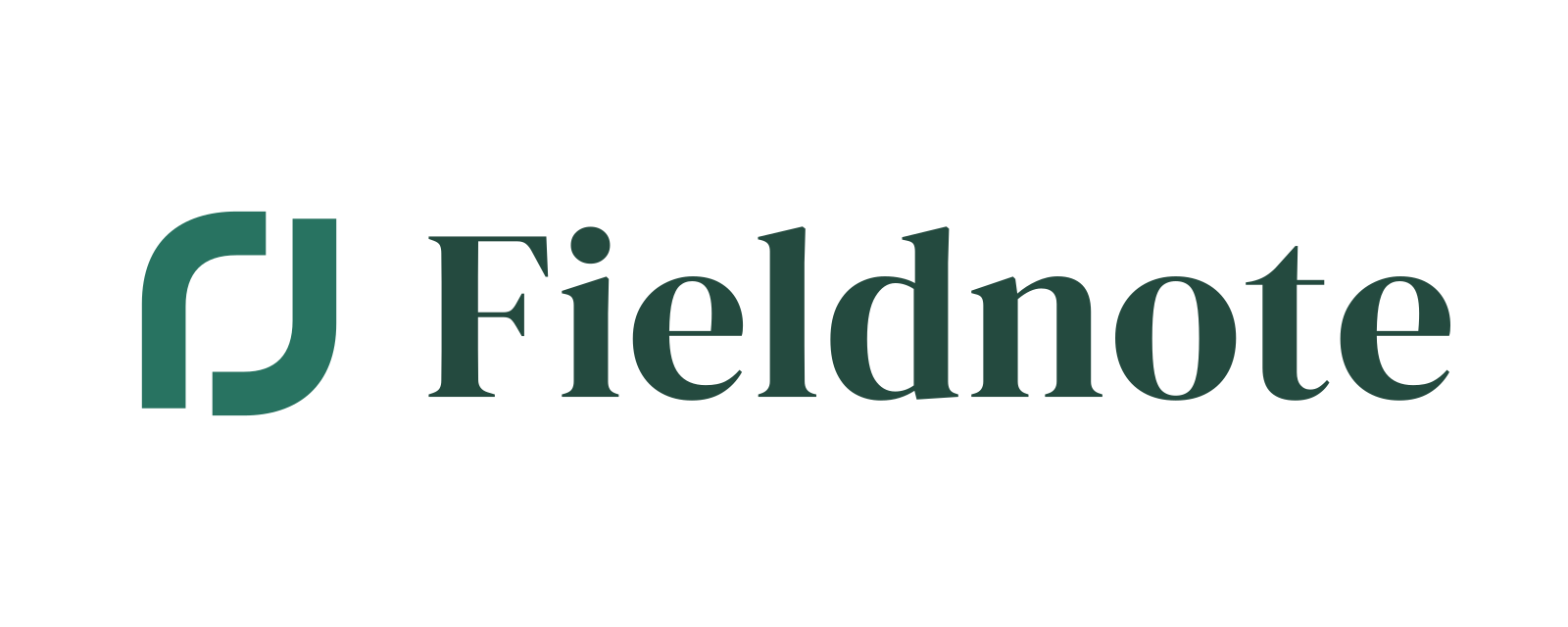
The result pairs a simple green symbol with a serif wordmark. Leave out a tagline at first: the header and favicon checks will be easier to judge without another small line of text.
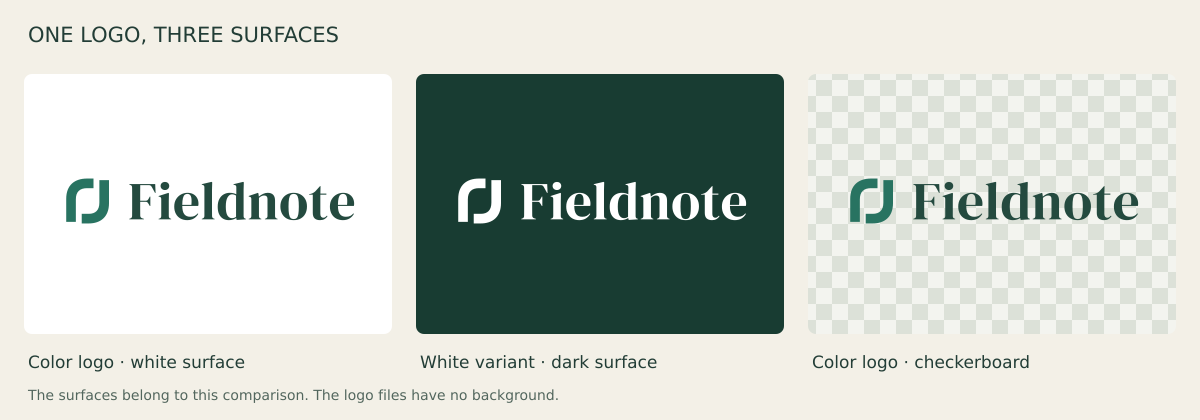
These examples use the logo creator's manual renderer with the settings above. The color artwork is available as SVG and a transparent PNG rasterized from that SVG. The comparison adds surfaces to show the transparency; it is not a screenshot of the editor. The middle panel uses the white variant rather than the dark green lettering from the color version.
Check transparency separately from contrast
In View logo & downloads, switch the preview among Light, Dark and Checkerboard backgrounds. The preview surface is for inspection and is not included in the download.
Use two separate checks:
- Transparency: can you see the surface between and around the letters and symbol, without a rectangular box?
- Contrast: is the artwork legible against that surface at the size you will use?
A transparent dark logo can still disappear on a dark page. Keep a light variant for dark surfaces. For a manual logo, the downloadable kit includes black and white SVG variants. With an AI symbol, the black/white variants change the lettering; the generated symbol keeps its colors.
An image viewer may display a transparent file on a white canvas. That alone does not prove the file has a white background. Place it over a distinctly colored surface in the destination app, or use an editor's transparency grid to inspect the empty area.
Choose the export for the destination
SVG stores drawing instructions; PNG stores pixels and can preserve transparent areas through an alpha channel. JPEG has no alpha channel. MDN's image format guide explains these format differences.
| Job | Practical starting file | Check before using it |
|---|---|---|
| Website header | SVG | Your site or CMS accepts SVG and displays it at the intended size. |
| Upload form that asks for a raster image | Transparent PNG | The platform's allowed dimensions and file-size limit. |
| Small profile or browser symbol | Icon PNG or Icon SVG | The symbol remains recognizable without the wordmark. |
| Further vector design work | SVG | The design app imports the outlined paths correctly. |
The logo creator's Download SVG export outlines the lettering. That keeps the appearance independent of installed fonts, but the name is no longer editable as ordinary text in the exported file. Make spelling changes in the creator and export again.
Download PNG exports the current layout. Horizontal and Wordmark layouts use a 1600 × 640 canvas; Stacked and Icon use 1024 × 1024. Those dimensions describe the file, including clear space, rather than the exact painted area. Preserve the aspect ratio when placing it in your site.
For this example, use the logo creator's own PNG download. The separate SVG to PNG converter can rasterize supported SVG artwork at a chosen width, preserving its proportions. It accepts a restricted set of SVG features and reports unsupported attributes; it may reject a file that a normal browser displays. If that happens, use the original design tool's PNG export. Leave Transparent background selected when converting compatible artwork, and inspect the result. Enlarging a small PNG cannot recreate missing vector detail.
Make a favicon from the symbol
A full wordmark usually becomes unreadable in a browser tab. Use Icon PNG to export just the symbol and inspect the editor's 16- and 32-pixel previews. If the mark looks crowded at that scale, choose a simpler symbol or initials.
Take the icon PNG to the favicon generator. Download the ICO and PNG sizes you need, then copy the supplied link tags into your site's normal asset workflow. The generator makes files; it does not update your website automatically.
Open the deployed icon URLs and check your site's tab after installation. Browser caches can retain an older icon, so inspect a fresh browser context as well. Keep the original SVG alongside the favicon pack so you can regenerate sizes without repeatedly resizing a small icon.
Fix common export surprises
| Symptom | Likely next step |
|---|---|
| White rectangle after upload | Inspect the original file on a colored surface; confirm the destination has not flattened it. |
| Checkerboard visible in the final image | Use the actual SVG or PNG download; a screenshot can include the preview grid. |
| Logo disappears in dark mode | Try a light variant and test the actual page background. |
| Name is blurry at a large size | Use the SVG where supported, or rasterize the SVG at the required pixel dimensions. |
| Exported name cannot be edited as text | Return to the creator, change the name and export again. |
| Icon is too small to recognize | Export the symbol separately and inspect it at favicon size. |
Keep a small working set: your editable settings, the main SVG, a transparent PNG, and the light or dark variants you actually use. For a launch announcement, bring the logo into the Open Graph image workflow; for contact details, follow the email signature guide.